ABOUT SWITCHBASE
All-in-One Operations & Event Solutions
SwitchBase is the operational platform built for shared spaces.
Anything that needs attention — across every department, every day — gets submitted, routed to the right people, completed the right way, and recorded professionally. One platform that gets used by everyone.
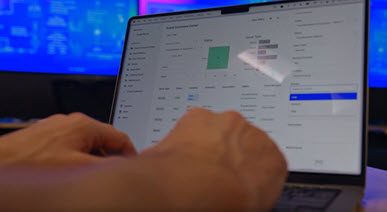
SwitchBase transforms venues and event operations with AI-powered Incident Management, Guest Services, Status tracking, Patrol, EMT Dispatch, Lost & Found, VIP services, Special Requests, Custodial, Maintenance, Inventory, Deliveries, Visitor Check-in, Announcements, Magic Moments, and more.
It's quite a list, which will never stop growing. If there is a need, we'll design the solution.
-
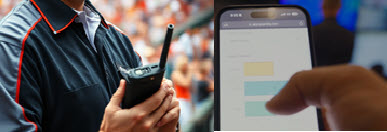
SwitchBase also places a Mobile Command Center at your fingertips — seamlessly integrating our AI-driven:
- Mobile App,
- Chat,
- Public Links, QR Codes, and NFCs,
- and SMS messaging,
- all working alongside your traditional tech
-
Learn all about it in our Mobile App Resource Center article
Your Home + Dashboards
Dashboards are curated collections of Widgets designed to track incidents, dispatch solutions, allocate resources, and deliver filtered Reports.
Acting as your operational nerve center, Dashboards instantly organize and share your organization's growing DataBase of actionable information — much like a central Switchboard once did.
-
Ergo, SwitchBase
-
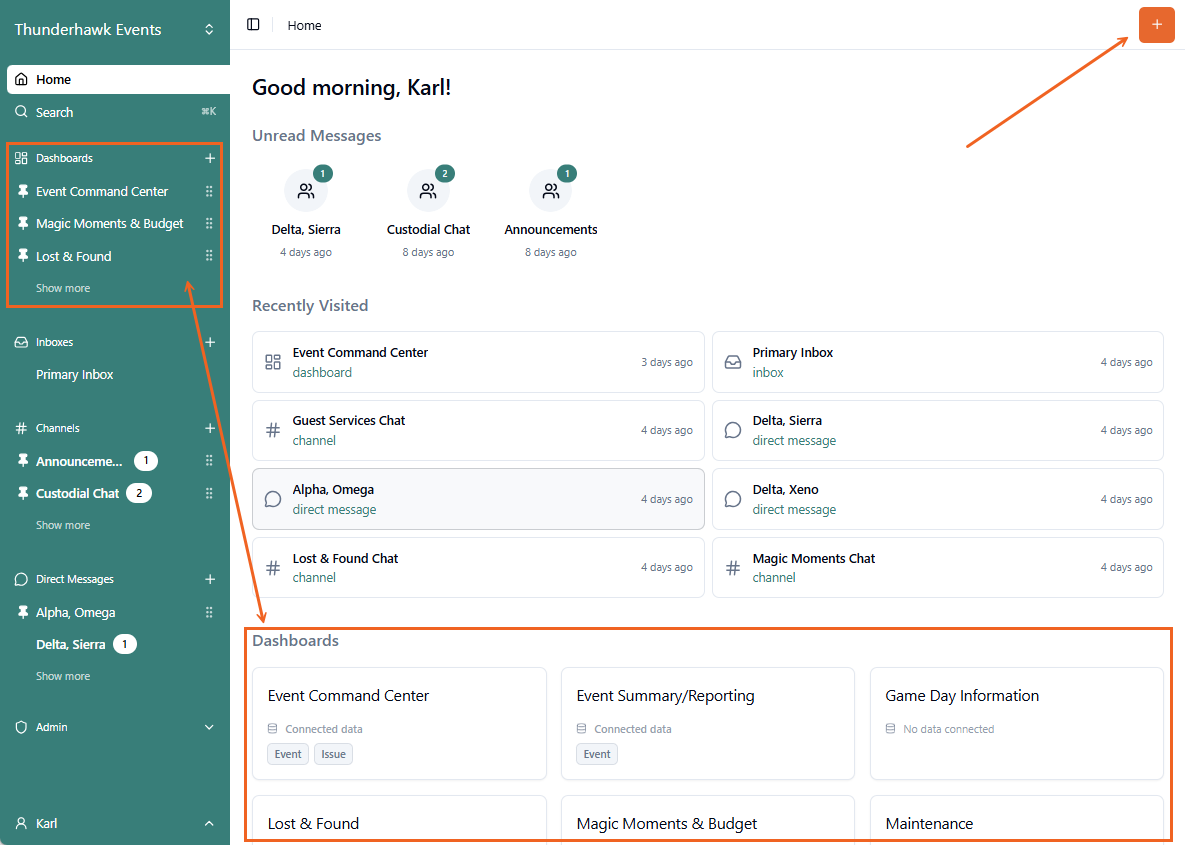
Tap your Home button to:
- Select Dashboards from either the Home page tiles or your Navigation panel
- Respond to any Unread Chat Messages
- Link quickly to your most Recently Visited Resources
- Launch Forms immediately by clicking the +Orange button
-
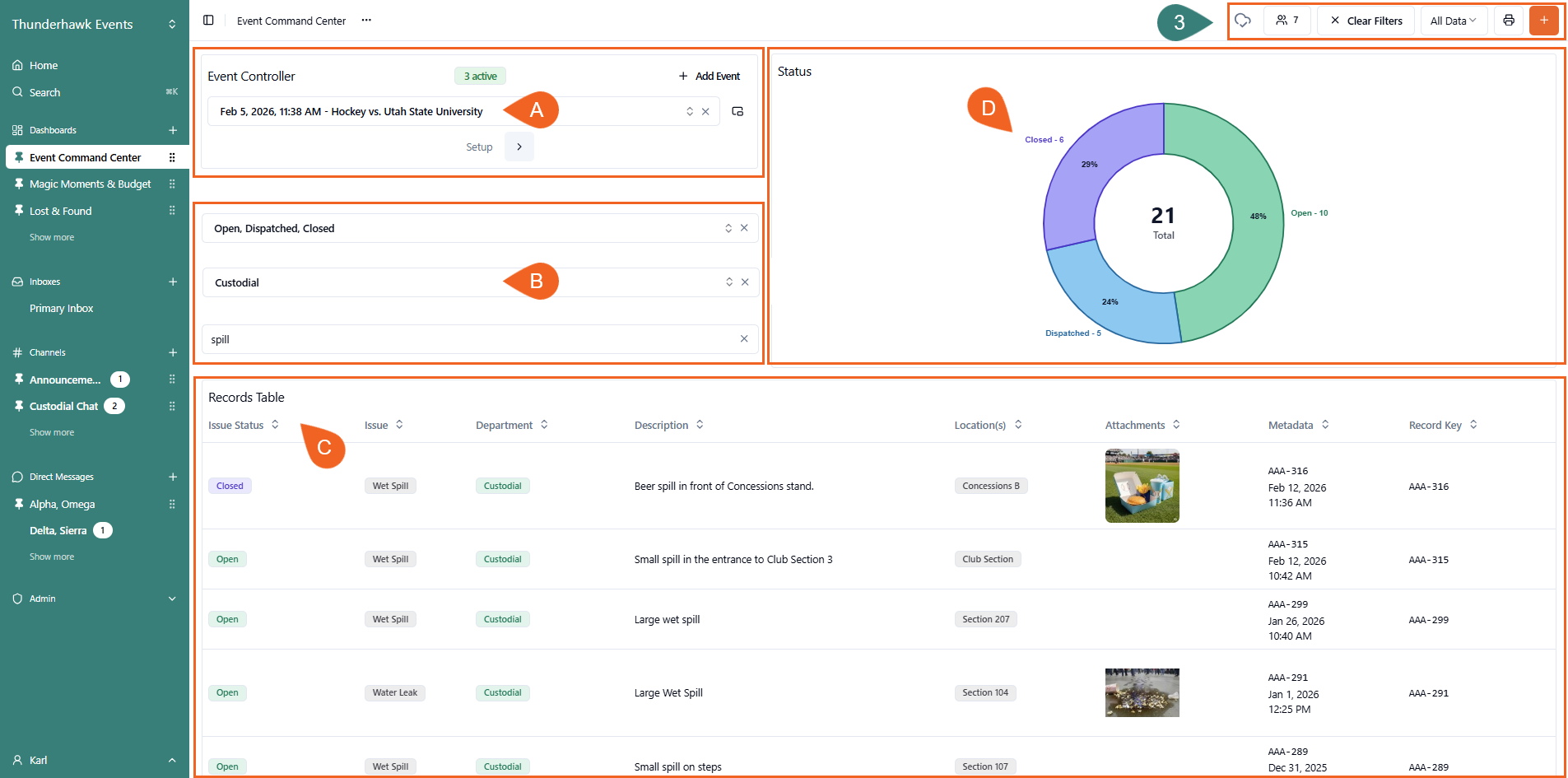
Segment and filter Dashboard Records with Widgets! For example:
- A. Event Controller → sort Events by Name, Date, and Event Markers
- B. Filters → filter by Status, Department, Description, etc.
- C. Records Table → display Status, Issue, Department, Description, Location, etc.
- D. Charts → track progress with Charts
-
Use the Toolbar at the top of SwitchBase to your advantage:
- A. Sync Status → see if your Records and Chats are updating quickly
- B. Share Dashboard → share your Dashboard with individuals and Groups
- C. Clear Filters → clear all of your filters with a single click
- D. Date Range → select from All Data or 30, 60, 90, 180, and 365 days
- E. Download Report → turn your Dashboard into a PDF Report
- F. +Orange Create Record → click to start a new Record

-
The Sync Status cloud will give you a Sync Error (!) if your connection is interrupted for any reason

-
When the connection is restored, your Sync Status will return a comforting ✓ indicating all is well
Filter your Dashboards
-
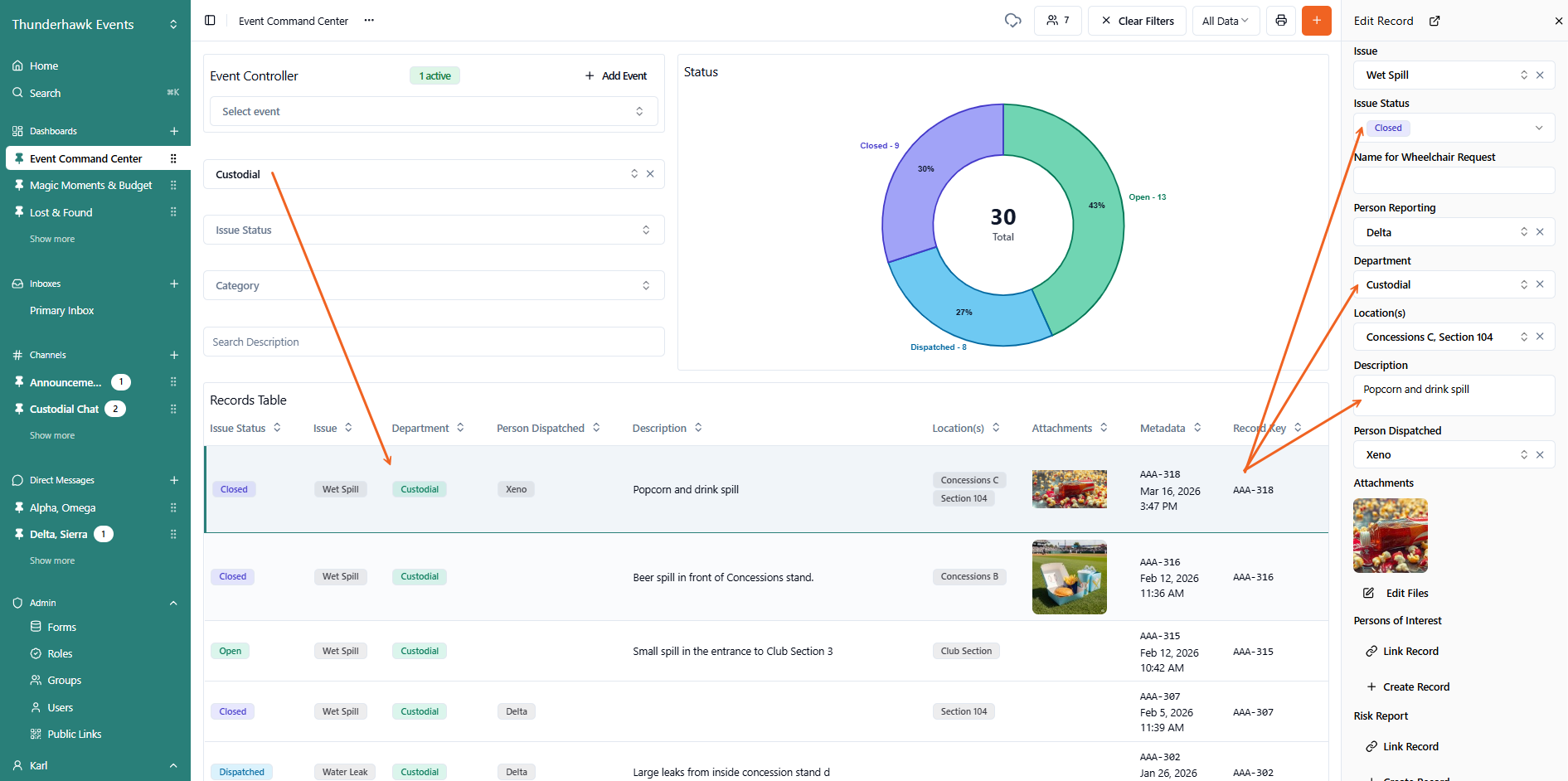
Organize and segment your Records with:
- A. Dashboards → ex. Event Command Center, Post Event Report, Lost & Found, Patrol, Work Orders, etc.
- B. Filters → ex. Event, Issue Status, Department, Description, etc.
- C. Records Table → click any Record to open and make updates → ex. change 'Issue Status' to Created > Dispatched > Closed
Share your Dashboards
Share your Dashboards with whoever you wish — and block sharing to those who shouldn't see your Records.
A quick glance at your Dashboard's Share button tells you if your Dashboard is:
Private → Only you can see it!

Shared → Lists the Individuals or Teams you've shared with → ex. 9

Learn more in our Share Dashboards article.
Create Incident Records + Forms
Records are created with intuitive Forms tailored to your exacting needs.
Creating Records is a snap. For example, Ward slipped and spilled his drink, and popcorn, all over the concourse above Section 107.

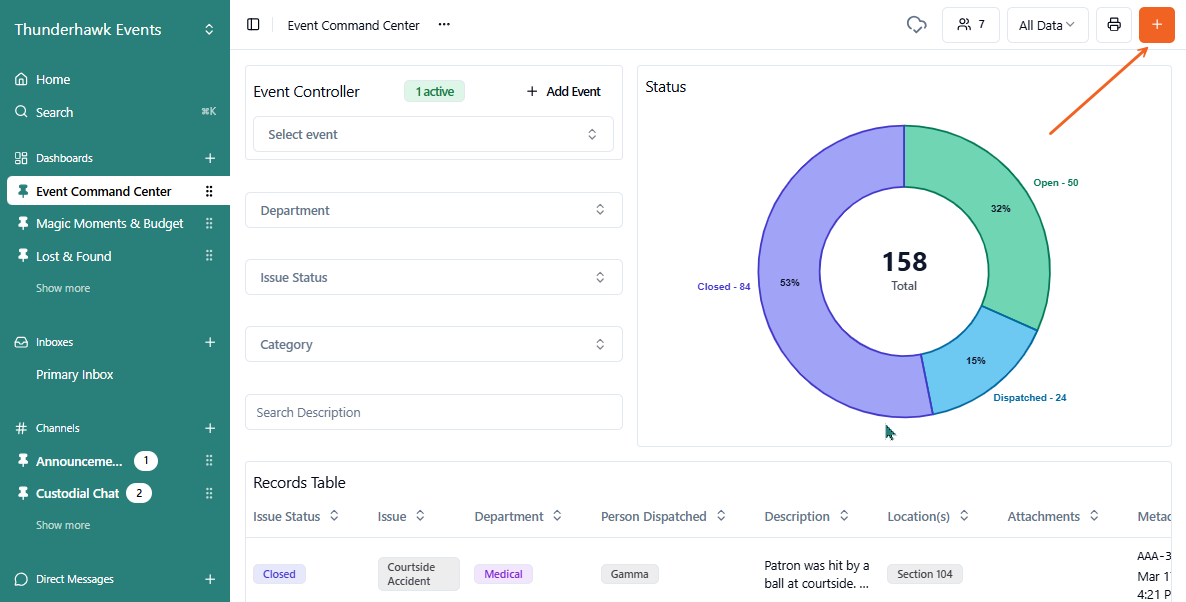
To create a Record → and track the status of Ward's colossal spill:
-
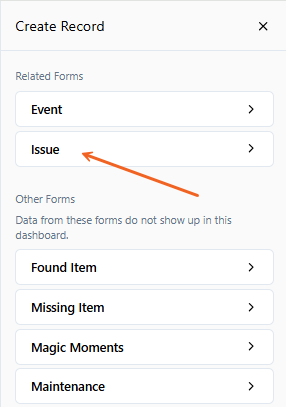
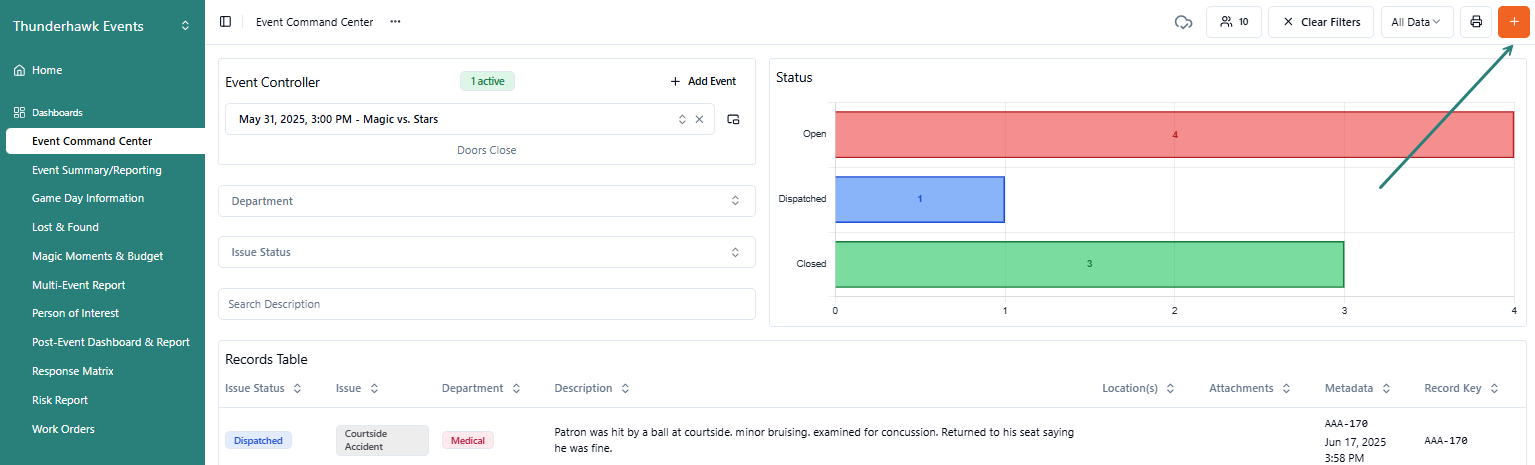
Click the +Orange Create Record icon
-
Pick your Form → ex. Issue
 Related & Shortcut Forms
-
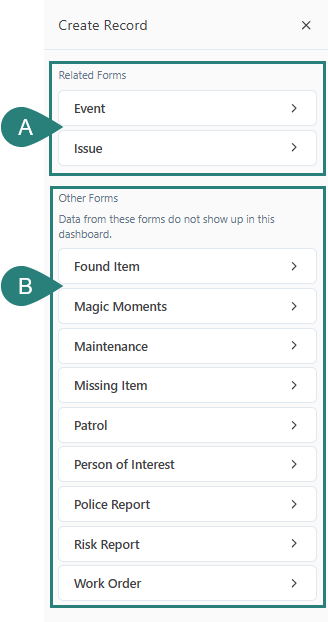
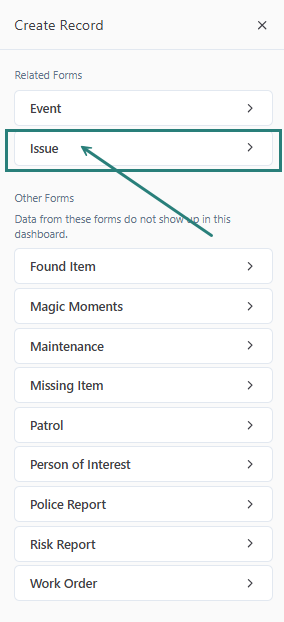
A. Related Forms → Forms related to the active Dashboard appear at the top of the Create Record panel for snappy access → ex. this Dashboard is composed of Event and Issue Records
-
B. Other Forms → other potential Forms appear below, where they can all be accessed quickly → ex. Found Item, Patrol, Work Order...
-
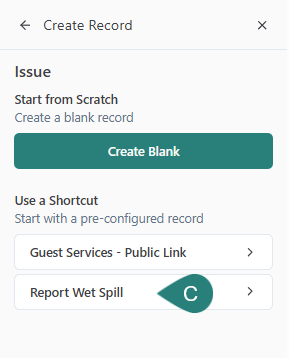
C. Shortcuts → To save time on repetitive incidents, Shortcuts can be added.
- ex. Guest Services, Report Wet Spill
-
Complete your Form
-
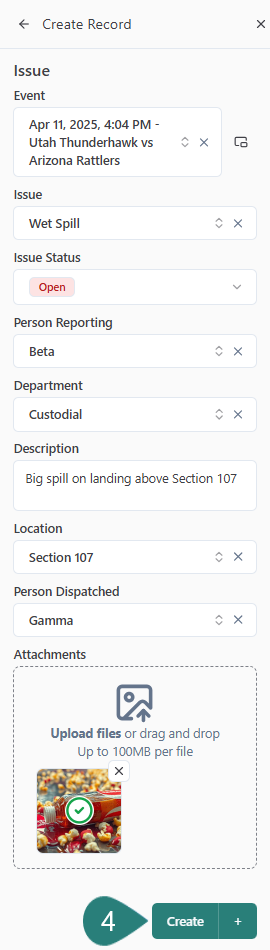
Fill in your Form (See Try the Super-Quick Selection Menus below)
-
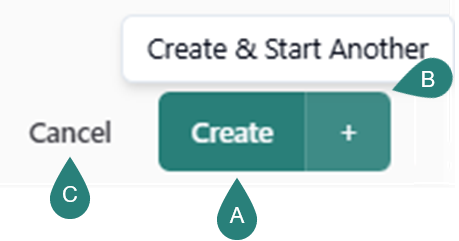
To save, click:
- A. Create → Save and leave the Record open to review
- B. Create + → 'Create & Start Another' Record immediately (Recommended)
- C. Cancel → Return without saving a Record
Try the Super-Quick Selection Menus
-
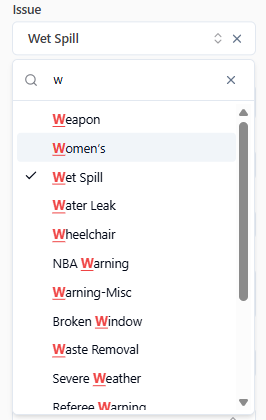
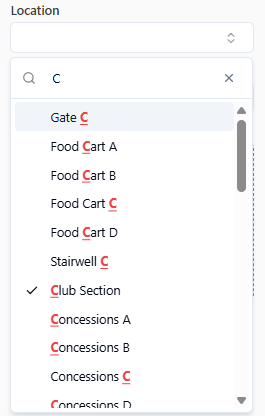
You may have hundreds of Locations and long lists of Issues. To select quickly, simply enter a few letters or numbers →
- w for "Wet Spill"
- C or cl for "Club Section"
- 7 for 'Section 107'
- s7 also for 'Section 107'
-
Everything matching the letters and numbers will pop up in the blink of an eye. Simply pick from the list!


Update & Track Records
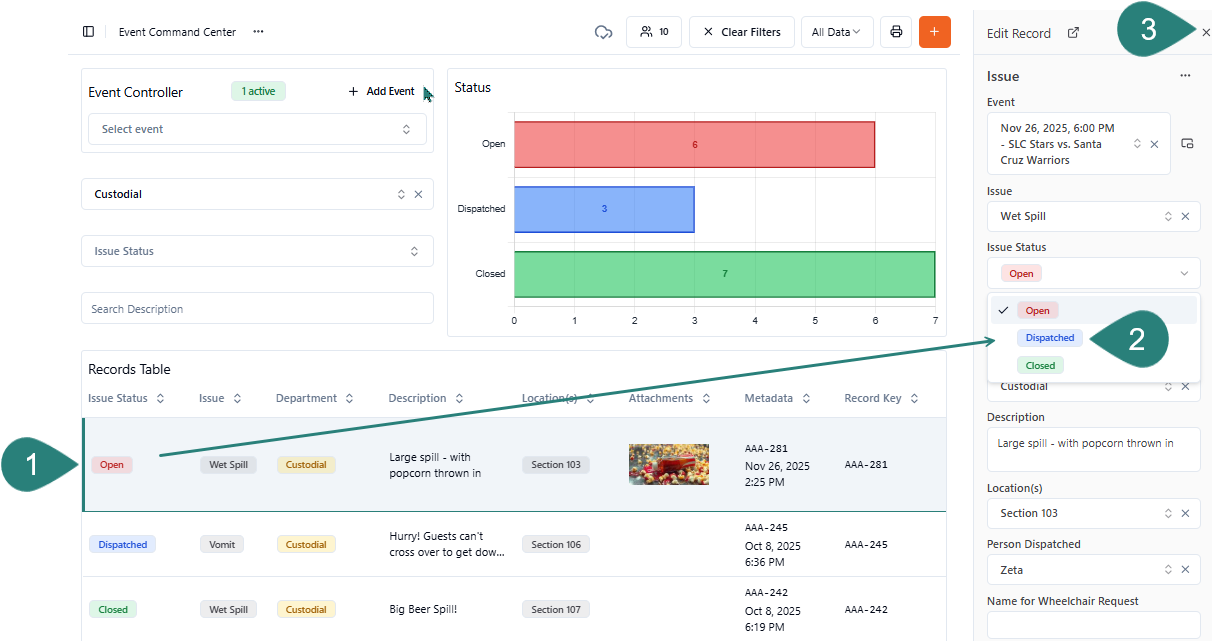
To track and alter Records:
-
Open any Record in your Records Table → by simply clicking on it
-
In the Edit Record panel, update your record → ex. change the Issue Status to Dispatched
-
Select X to Close an open Record
Advance Event Markers
Many venues use Event Markers to switch between the various stages of an Event. These markers allow for granular, post-event analysis.
To advance Event Markers for an active Event:
-
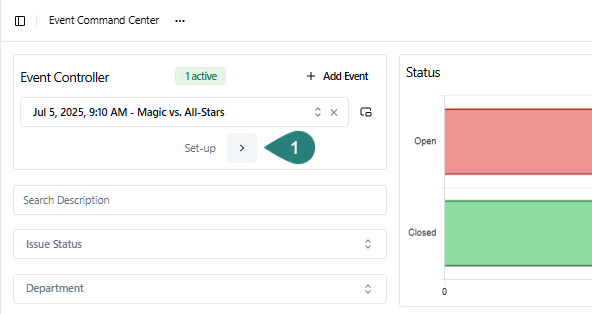
Click the advance icon in the Event Controller to switch between stages → ex. Set-up > Doors Open > 1st Quarter >...
-
Tap Continue to confirm → ex. Change to Doors Open

-
Notice that the Event Marker is ready to progress to the next stage → ex. Change to 1st Quarter

Save Time with Shortcuts!
Shortcuts are customized, pre-populated templates. With Shortcuts, you can pre-select default Values and hide unnecessary Fields. You'll pick from 2 types of Shortcut Forms:
A. Event Form Shortcuts
-
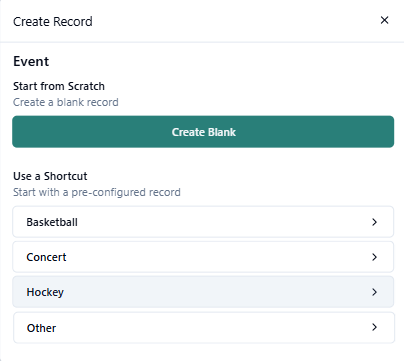
Open Event Shortcuts by first clicking Add Event

-
Pick from the list! Event Shortcuts may include Basketball, Concert, Hockey, or Other
B. All Other Shortcuts
-
Click the +Orange Create Record icon
-
Pick your Form → ex. Issue
-
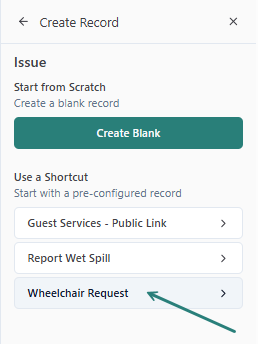
Choose a Shortcut from the Create Record panel → ex. Wheelchair Request
-
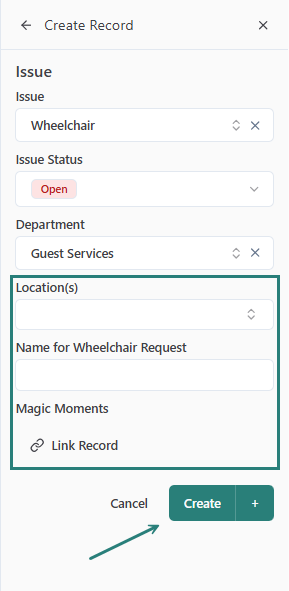
The Shortcut Form will be partially completed! Finish it and hit Create!
- Learn more from our Shortcuts article
Delete Records
To delete a Record:
-
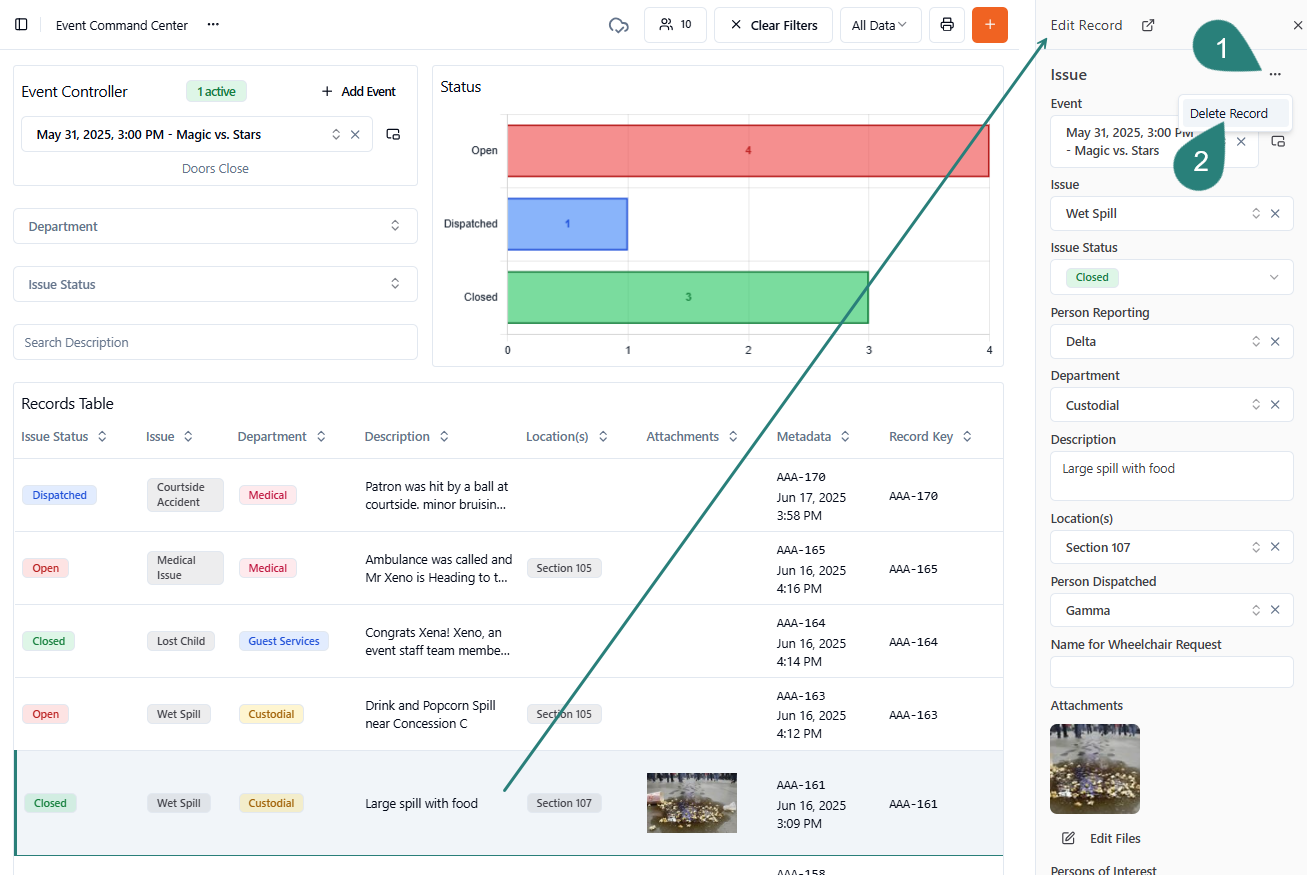
Click the ellipsis (...) at the top of a Record
-
Click Delete Record
-
Click the Delete button to confirm the deletion

- Permission to delete Records is set in your Role designation
- If you need to delete, consult with your Supervisor, Manager, or Admin, who may contact SwitchBase about a Role update
Summarize Records with AI
Use AI to generate and refine a summary of an event:
-
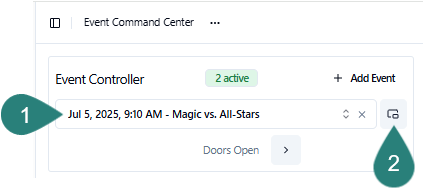
Select an Event from your Event Controller
-
Click the Open Event icon → to view the full Event Record
-
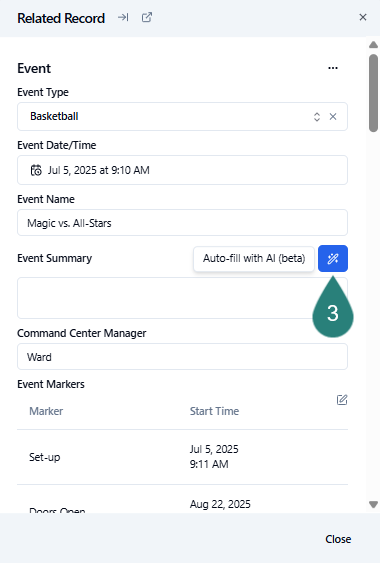
Scroll down and find your 'Summary' Field → and click its AI icon
-
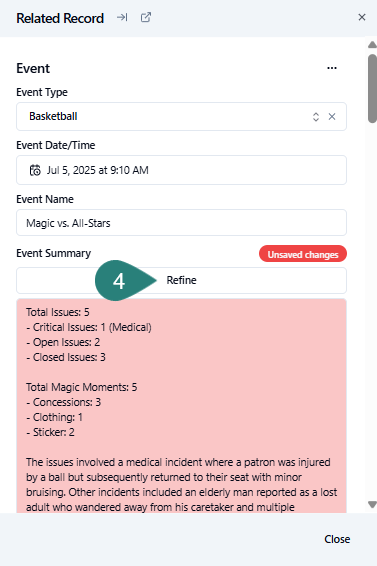
Blink as your event's Records are summarized → then click the Refine bar if you need to edit the AI summary
-
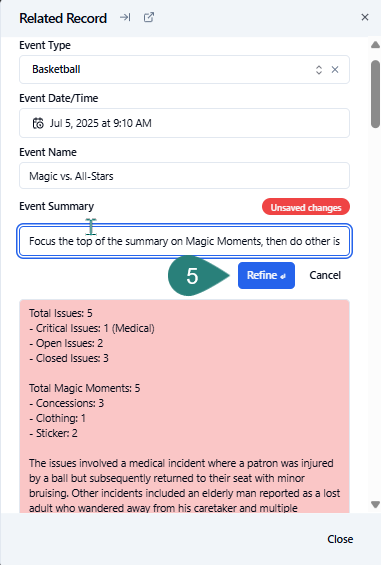
Improve your summary by adding or excluding information → ex. "Focus the top of the summary on Magic Moments." → then click Refine again
- Visit our Resource Center article, 4. Filter Dashboards & Reports, to learn all the details!
Download PDF Reports
To filter and create a PDF Report:
-
Select a Dashboard
-
Filter your Report:
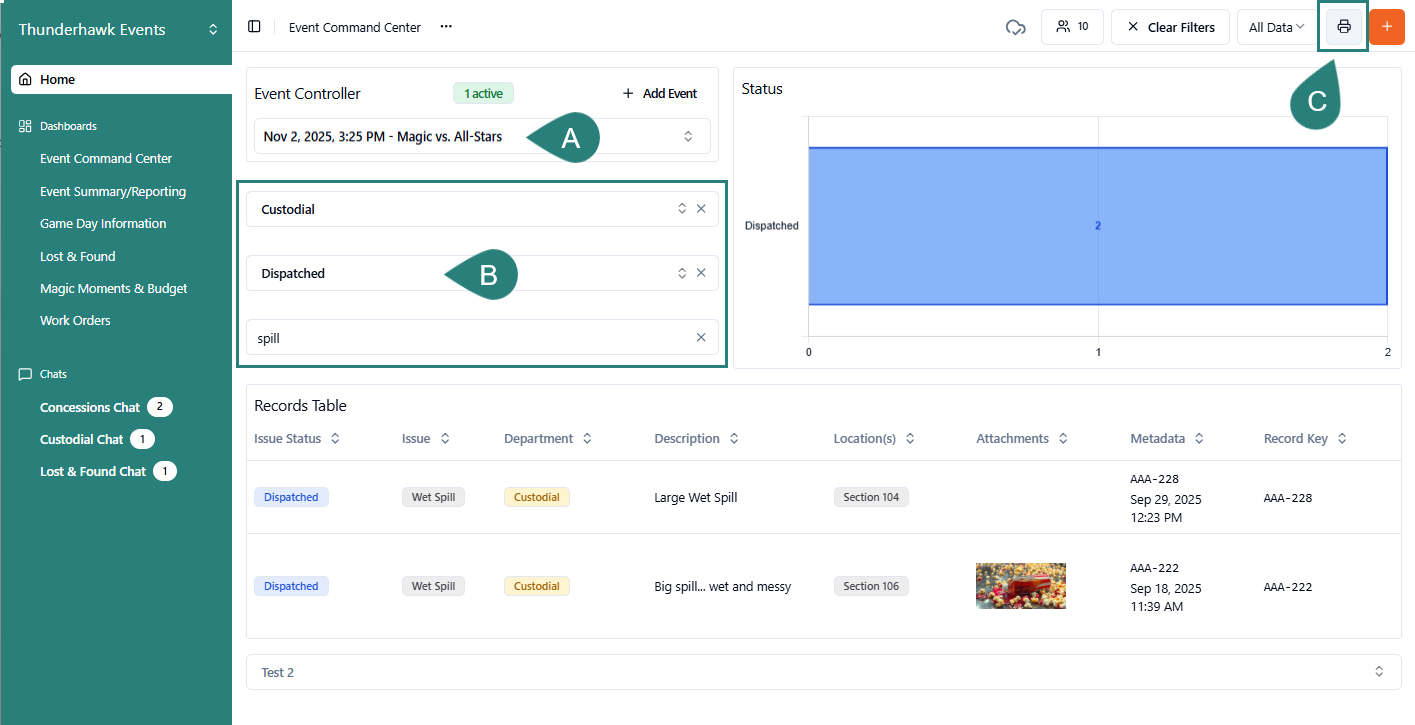
- A. Filter Events in the Event Controller
- B. Apply optional Filters → ex. Spill, Dispatched, Custodial
-
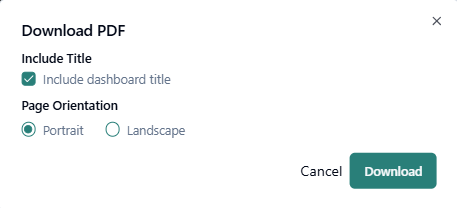
Click the Print / Download button
-
Include or Exclude the Dashboard's Title → by checking or unchecking the box
-
Select either Portrait or Landscape
-
Click Download
 Share, print, or post your PDF reports
- See Filter & Publish PDF Reports to learn more
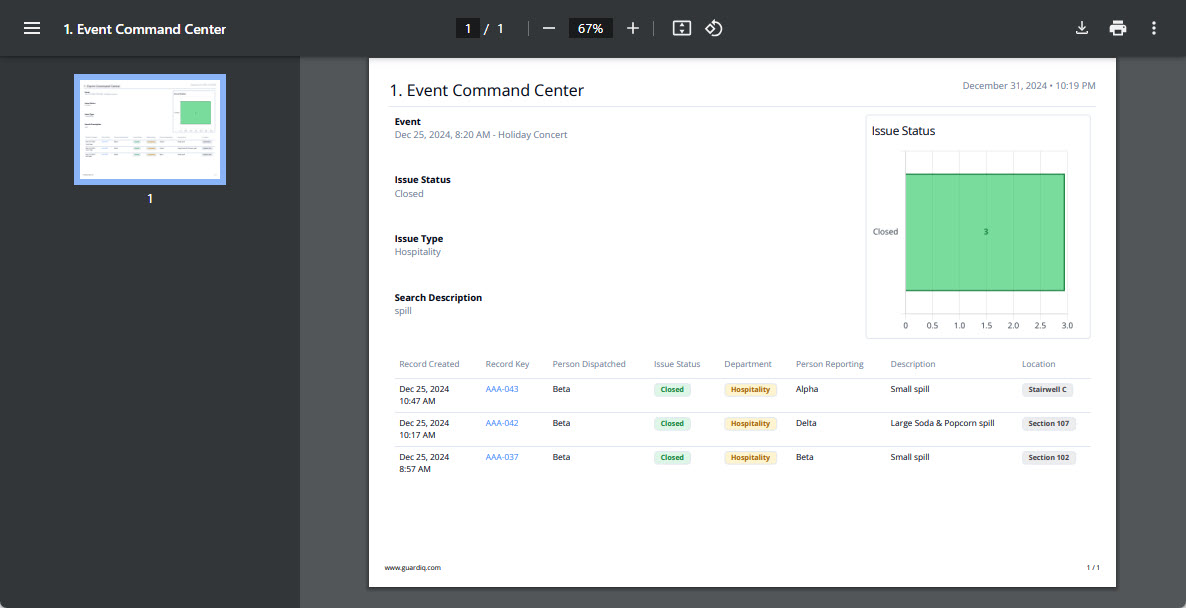
- See Filter & Publish PDF Reports to learn more
Use SwitchBase Chat
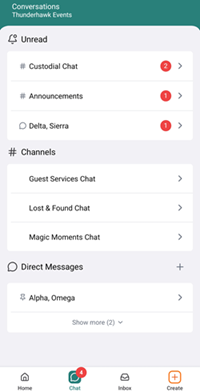
Communicate instantly with your teams and individual members with SwitchBase Chat.
Built into both Mobile and Web, event and venue communications have never been easier.
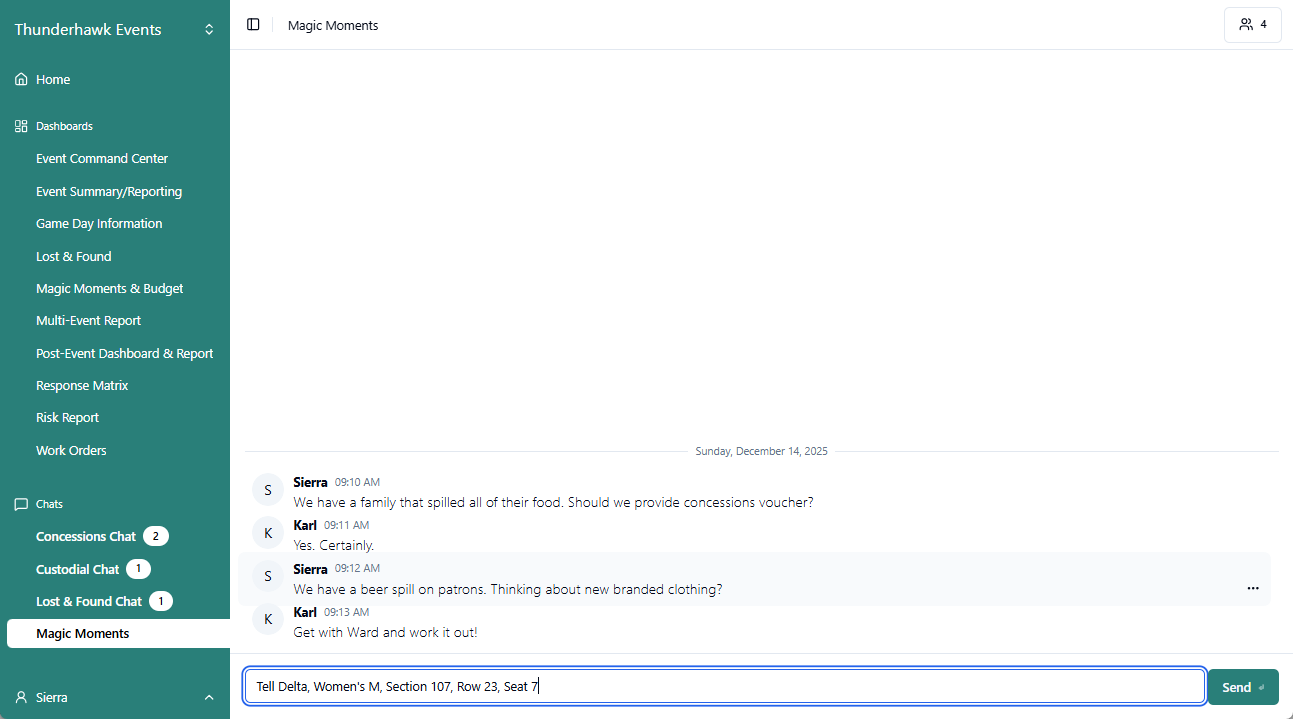
Learn to use Chat with SwitchBase Web in our Resource Center.
Try SwitchBase SMS
SwitchBase SMS provides a fully managed, compliant, and scalable SMS system. Let our team handle the technical setup, number acquisition, and opt-out.
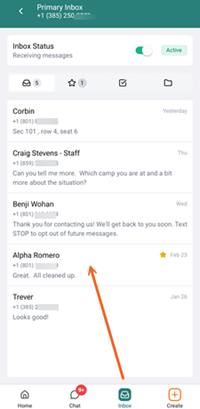
Manage your inbound messages through a shared Inbox with Quick Replies, thread filtering, and AI-assisted functionality — which instantly converts threads into incident Records in your Dashboards for immediate action.
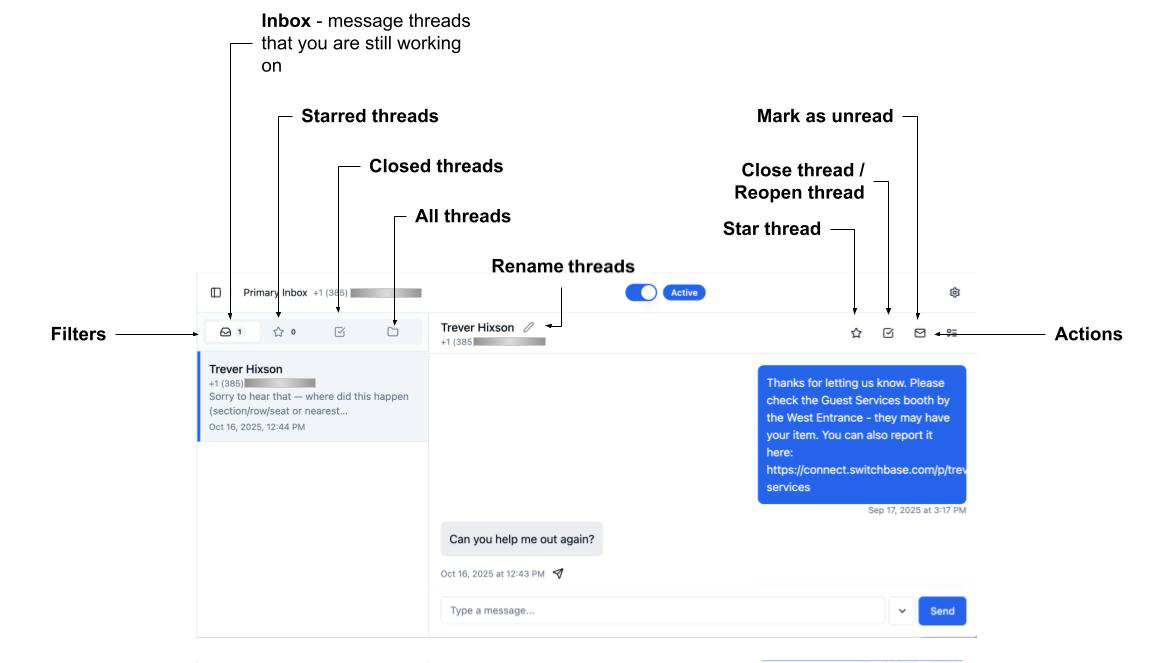
Learn to Use SwitchBase SMS in our Resource Center.
Mobile App — SMS & Chat
-
Learn to Chat in the Mobile App
-
Learn all about SwitchBase SMS in the Mobile App